With the Tyro Online Payments integration, your clinic can securely collect payments online for both invoices and booking prepayments. Patients receive a secure payment link, allowing them to pay quickly from their computer or mobile device.
On this page:
- Important Information
- Helpful Links
- Set Up
- Taking Payments
Important Information
- Tyro can take payments for online invoices and online booking prepayments
- The Tyro payment gateway integration uses a pop up window. Popup windows are, by default, blocked in every major browser. See taking payment steps below for how to manage this.
- Every practitioner that wishes to take payments through the online portal will need a provider number as this is a mandatory requirement to be included on all online payments.
- An employee will need to be linked to every invoice for Tyro Online Payments to work.
Helpful Links
Set Up
Step 1. Every practitioner that wishes to take payments through the online portal will need a provider number as this is a mandatory requirement to be included on all online payments.
- How to add provider numbers to an invoice for health fund claims
- How to add provider numbers to Tyro
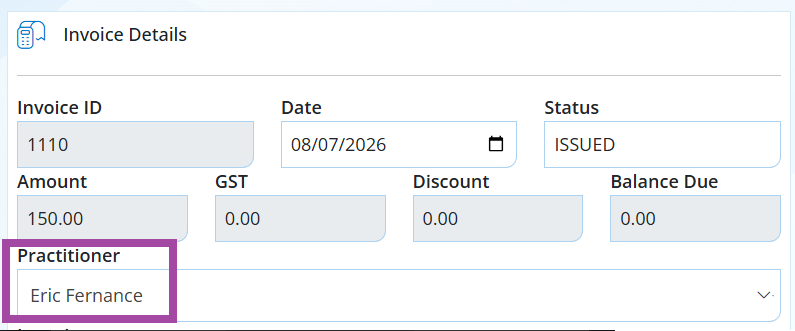
Step 2. When creating an invoice, an employee will need to be linked to every invoice as below for Tyro Online Payments to work.
Taking Payments
Step 7. The patient selects to make payment on either an invoice or an online booking prepayment, then will see the below screen in the next step.
- Invoice -> select PAY
- Online Booking Prepayment -> select Make Payment
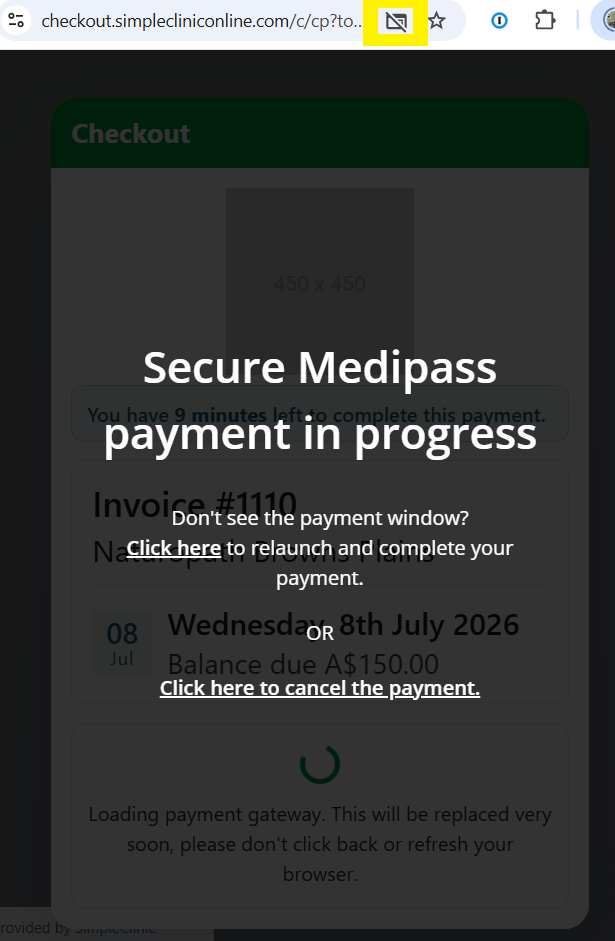
Step X. Select Click Here -> to relauch and complete the payment. This will need to be done every time if pop ups are blocked on the browser (which is likely for every browser by default).
The little square with the slash through it in the address bar indicates that the popup was blocked.
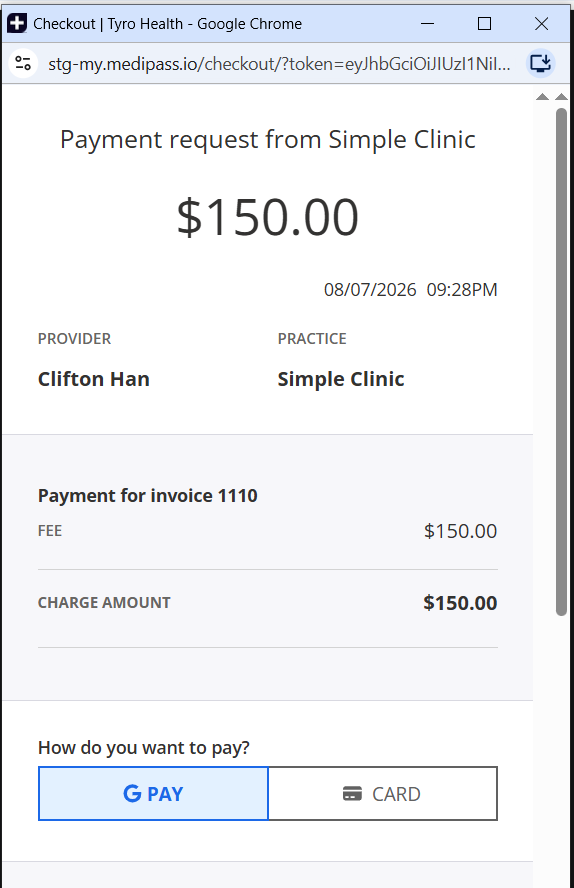
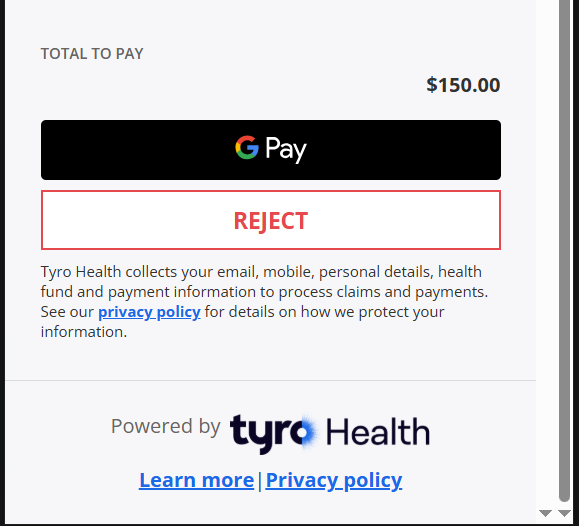
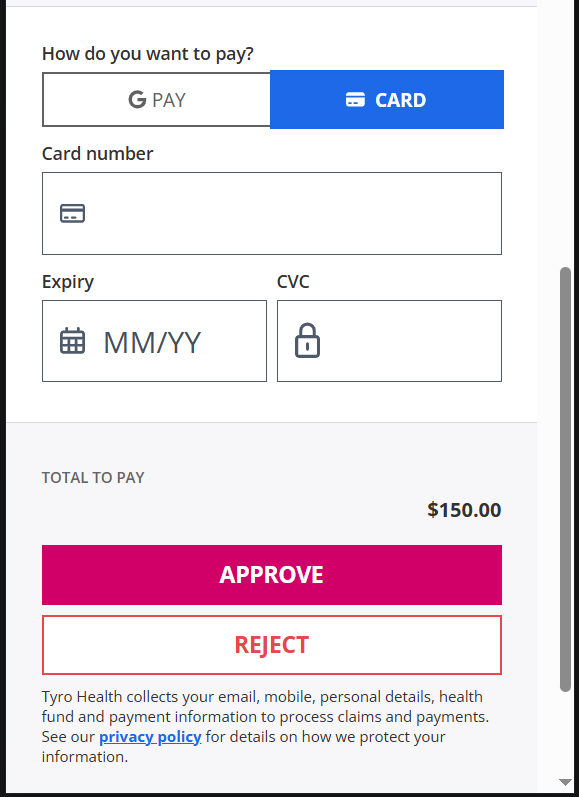
Step X. The next screen will show the payment window and the amount, select a payment type, e.g. G PAY or CARD as below. Complete the required details and make payment.
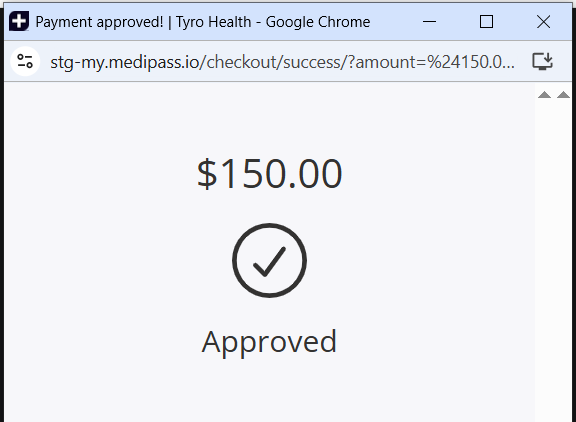
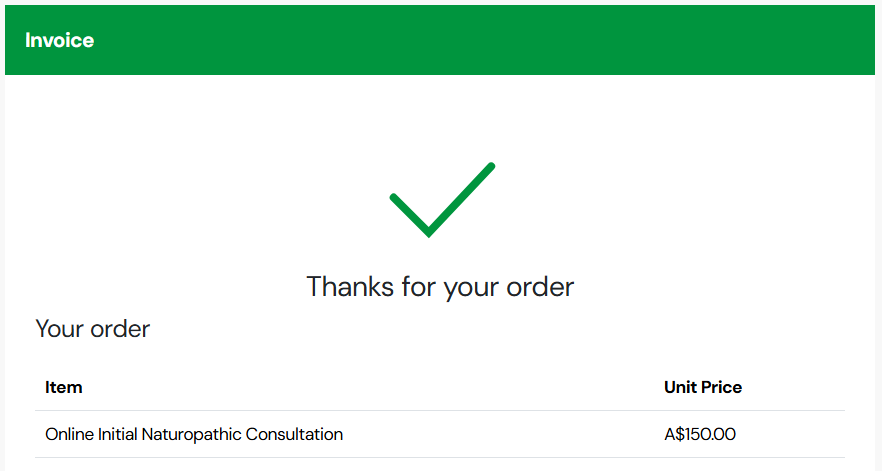
Step X. Once payment is taken, the below confirmation will appear briefly before going back to the invoice or online booking screen, where there will be another cofirmation of payment as below.
Tyro confirmation:
SimpleClinic Invoice confirmation:
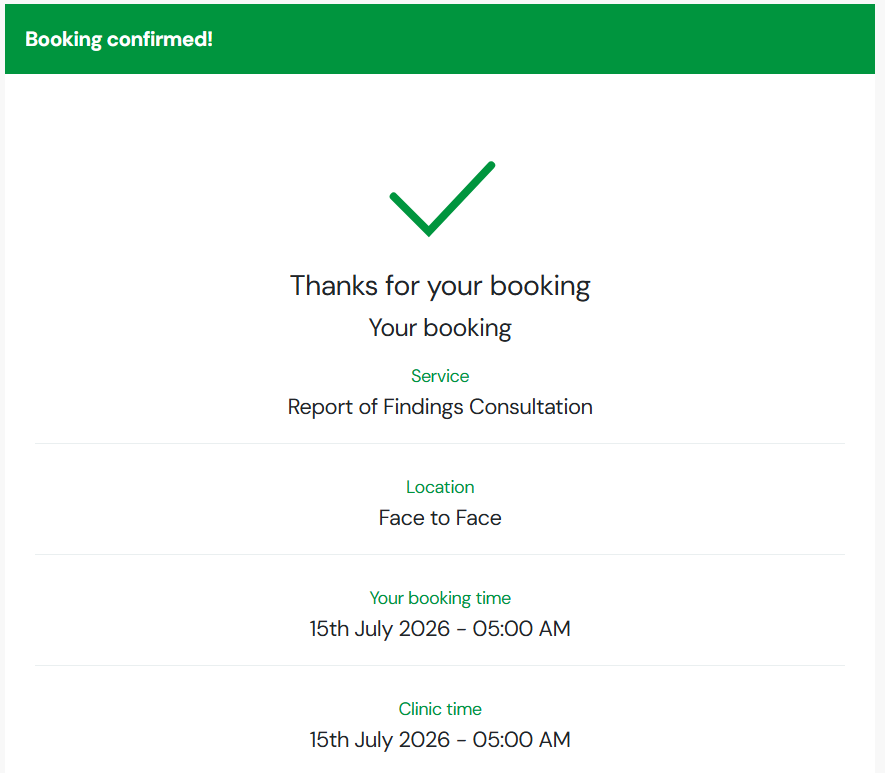
SimpleClinic Online Booking Confirmation: