
Our built-in AI scribe, Lumielle, enables consultations to be recorded and automatically converted into clear, structured treatment notes.
During your consultation, our platform will record the audio. With SC Meet consultations you will not see the word for word transcription as you speak. Once your consultation recording is completed, the transcript will be generated and organised into the custom fields used in your configured treatment note.
Please note Lumielle is NOT configured to work with Zoom. If you are using Zoom, we recommend you use the Zoom AI scribe and copy and paste your notes as plain text into your SimpeClinic treatment note.
For SC Meet online consultations, ensure that you follow the steps in the below article to configure Lumielle and map your service categories for online appointment types.
On this page:
- Important Information
- SC Meet transcription workflow
- Costs
- Demonstration Video
Important Information
- Lumielle must be connected first and the license agreement accepted. To check go to Content --> Custom Fields.
- The default Notes and Next Actions custom fields MUST be enabled for the AI Scribe to work.
- Ensure you are using the most up to date version of Chrome as your browser, or Lumielle will not be able to record.
- There are two different process depending on whether your patient is in person or online via SC meet. For In Person consultations click here.
- For SC Meet transcriptions you will need to Configure your service reminder categories to your preferred appointment types to get the full range of custom fields for your treatment notes.
Helpful Links
SC Meet Transcription
Before following these steps -> Set Custom Fields for SC Meet Transcriptions
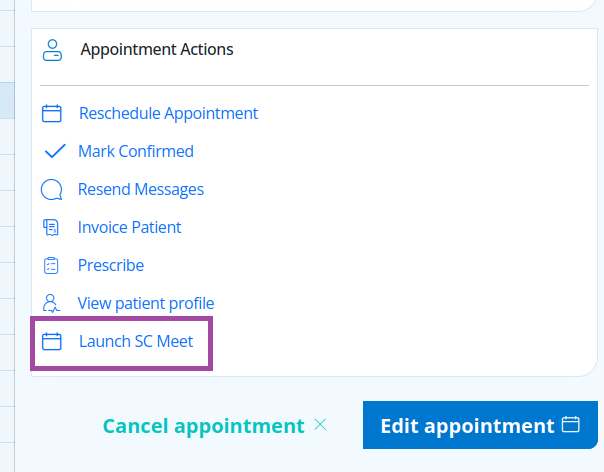
Step 1. Start your SC Meet consultation as normal by going to the Diary --> Selecting your appointment --> select 'Launch SC Meet' from the right hand side panel.
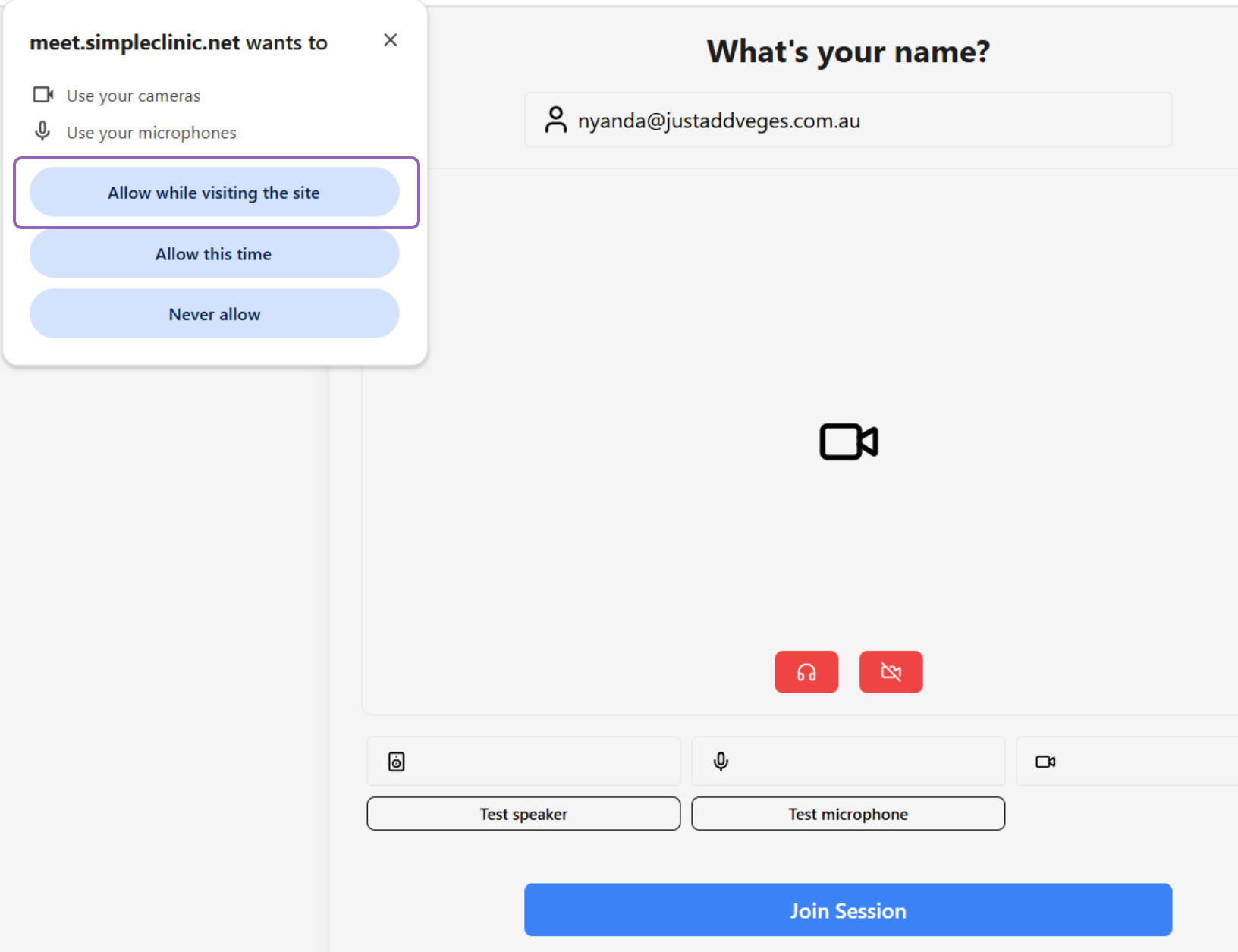
Step 2. Your browser may ask you to approve SC Meet to have access to your audio settings. Please refer to this article for more information.
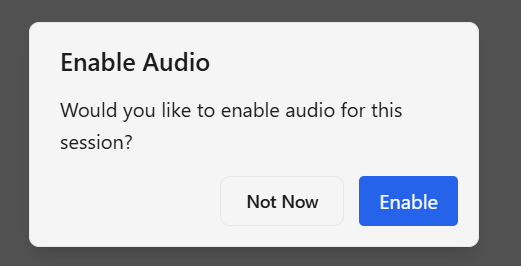
Step 3. Enable your Audio for your session.
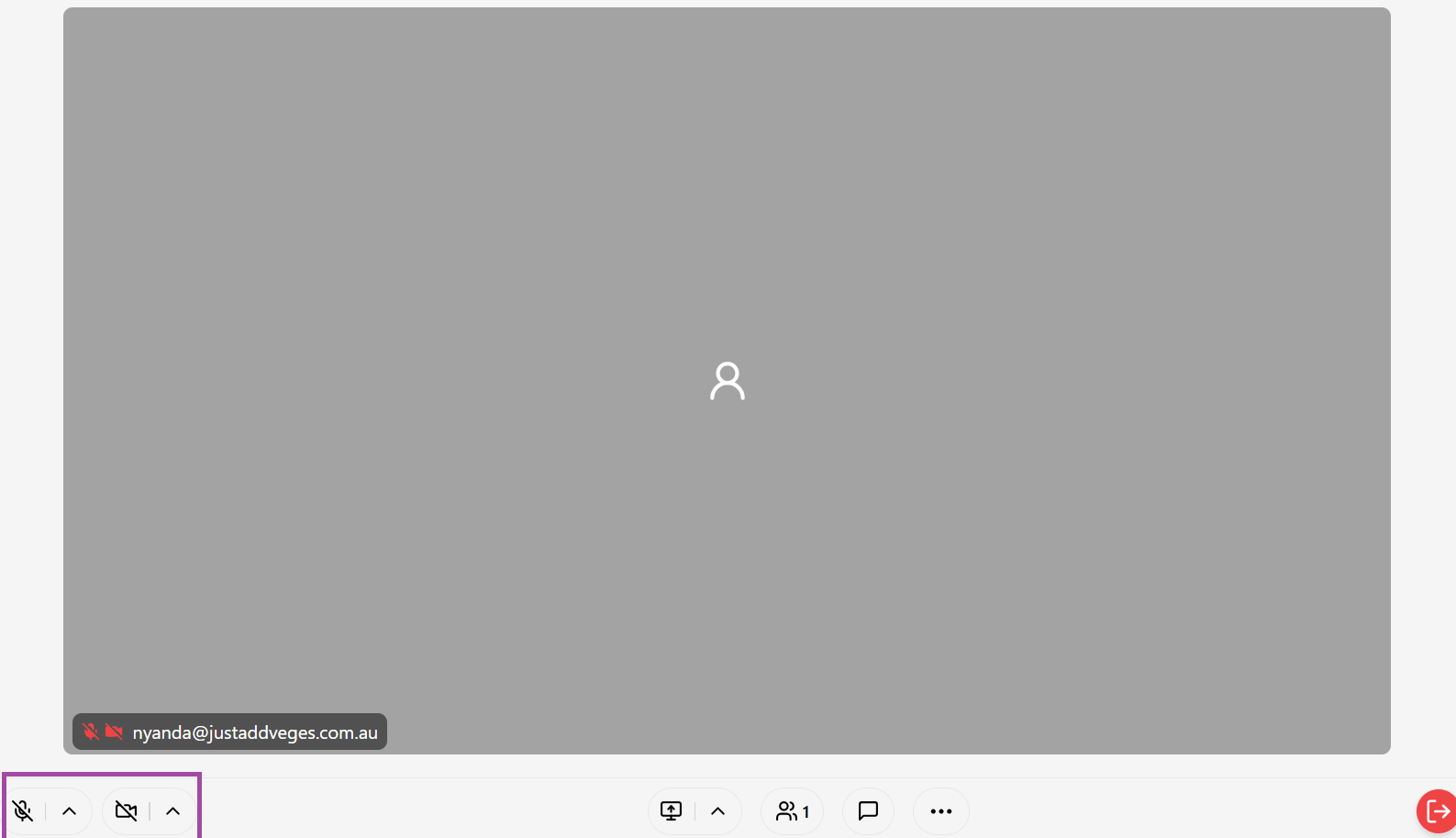
Step 4. Once you have joined the meeting, turn on your video and microphone from the controls on the bottom left of the screen (position will vary for a laptop vs mobile phone).
If desired click on the arrows next to the Microphone and Video icons to change your selected video, speaker or microphone.
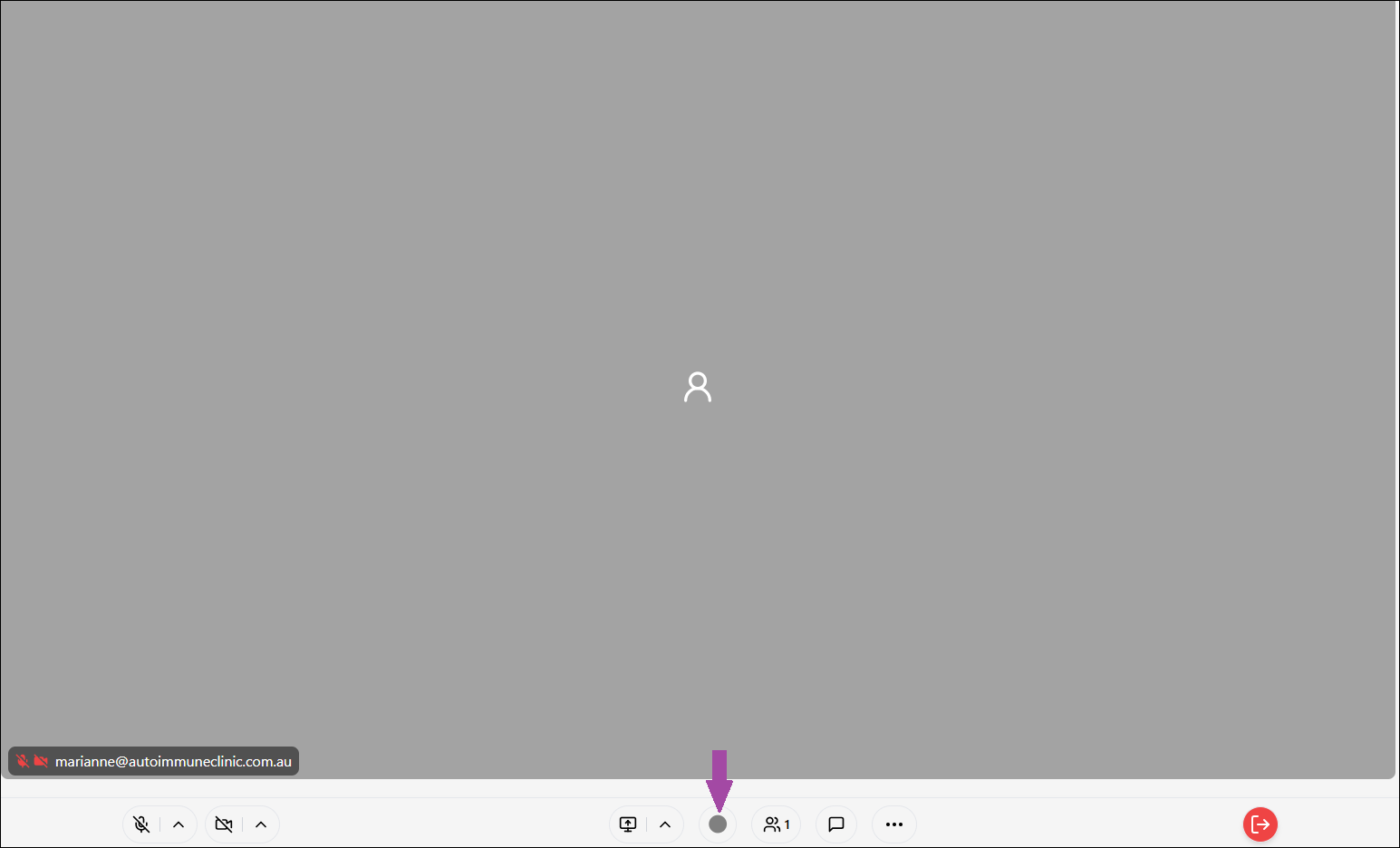
Step 5. After confirming your audio is working --> Select the record button at the bottom of the meeting screen.
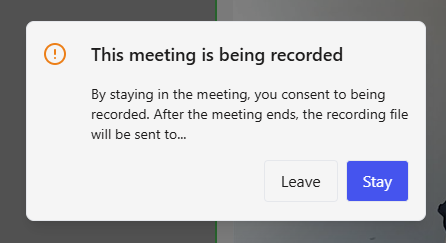
Step 6. Your patient will be asked to consent to the recording and has the option to stay or leave the meeting.
The record button will turn red when the recording has started.
Step 7. Once the record button is red, begin your consultation as normal. Please note that for SC Meet, the transcription process will not occur until the full recording has been completed.
Tip: In your consultations be specific and detailed with your wording and terminology for the best output. Use words like ‘Our goals’, 'My Recommendations', ‘Next Actions’, "I will prescribe you with ', 'I will refer you to pathology testing' and any information regarding tests or recommendations you want to provide the patient.
Step 8. Once you have completed your consultation --> select the red door icon in the bottom right of the page --> END session. Please note you must end the session prior to leaving it to ensure your session is completed and the billing finalised.
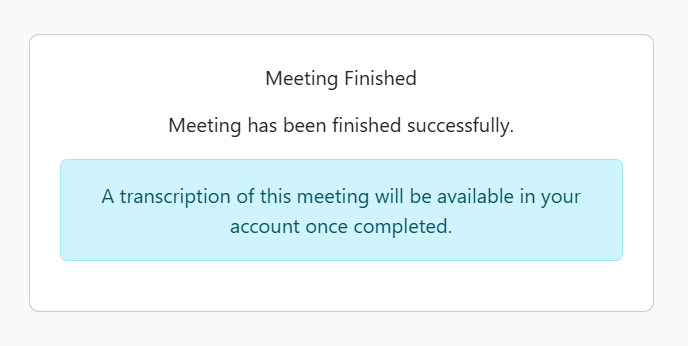
Step 9. Once you have ended your video call you will see a notification that a transcription of this meeting will be available in your account once completed. You can close the SC Meet tab and return to your SimpleClinic window.
Lumielle will then start to transcribe your consultation in the background once your call is concluded.
Depending on the length of your telehealth appointment this can take anywhere between 10 - 20 minutes. A new treatment note will then appear under the patient record Consultation Tab.
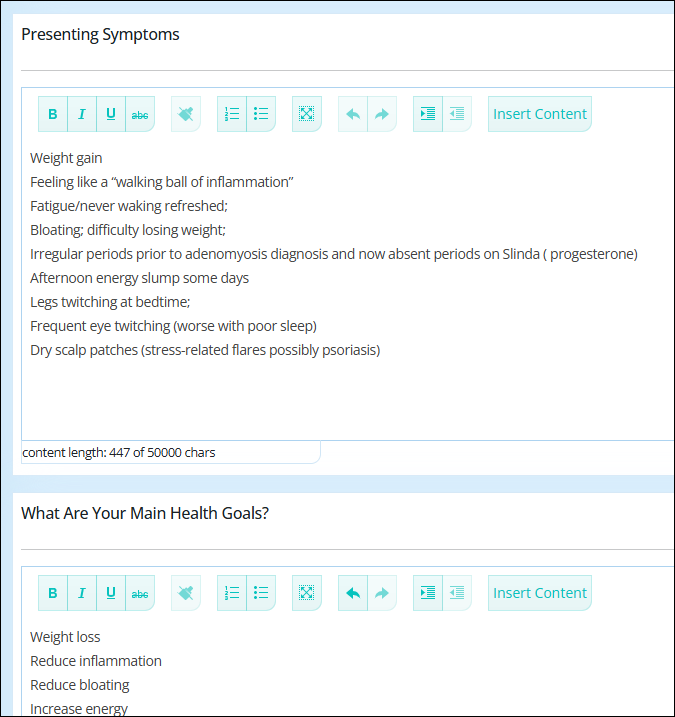
Step 9. Once your new Treatment Note is available under the patient record --> Consultation Tab --> select view next to your new Treatment note to review and edit.
We recommend you review, edit and format all information and ensure it's accurate, clinically valid, and correctly organised within the relevant custom fields.
Please note: as AI is non-deterministic (a process, algorithm, or a system who's outcomes are unpredictable or varied), it’s important to review edit and format your treatment notes before finalising them.
To view the full word-for-word transcription --> select 'View Transcription' from the bottom of the Treatment Note page.

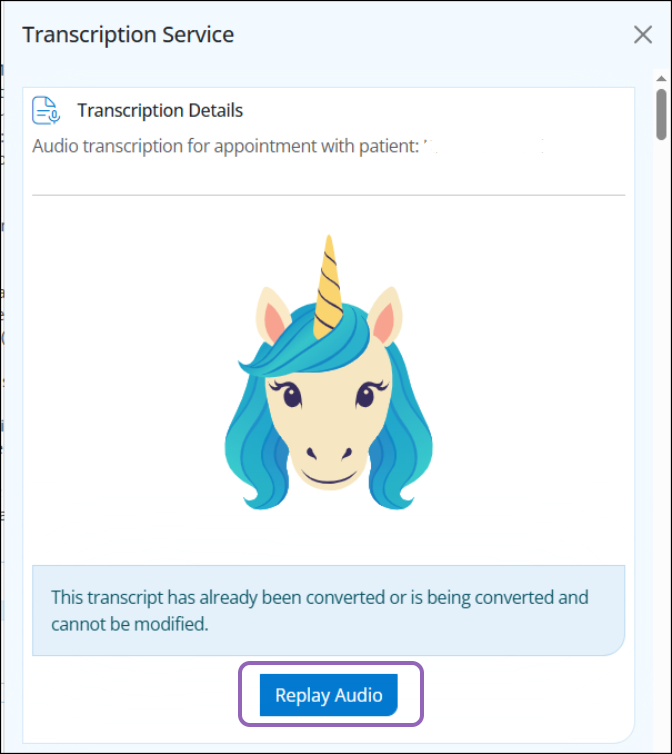
To listen to the audio --> click on the Lumielle icon --> click on Transcribe Treatment Note -- Replay Audio
Costs and Billing
Pricing is usage-based and calculated according to the number of tokens used to generate the treatment notes.
Your final invoice will be based on the actual token usage and transcript duration, converted to AUD and inclusive of GST. ( as we prepay tokens in USD)
Estimated Cost: ~ $0.07 AUD per minute
On average, this equates to approximately 7 cents per minute to transcribe your consultation word for word and with AI (aka Lumielle) then summarising the transcript into your chosen Appointment Type under treatment notes.
Example:
A 60-minute consultation would cost approximately $4.20 AUD (incl. GST), subject to token usage and exchange rate variations.
Billing
Initially, usage will be billed in arrears, similar to SMS charges, and invoiced at the start of each month.
In the future, this will transition to a prepaid model, where tokens or account credit can be purchased in advance.