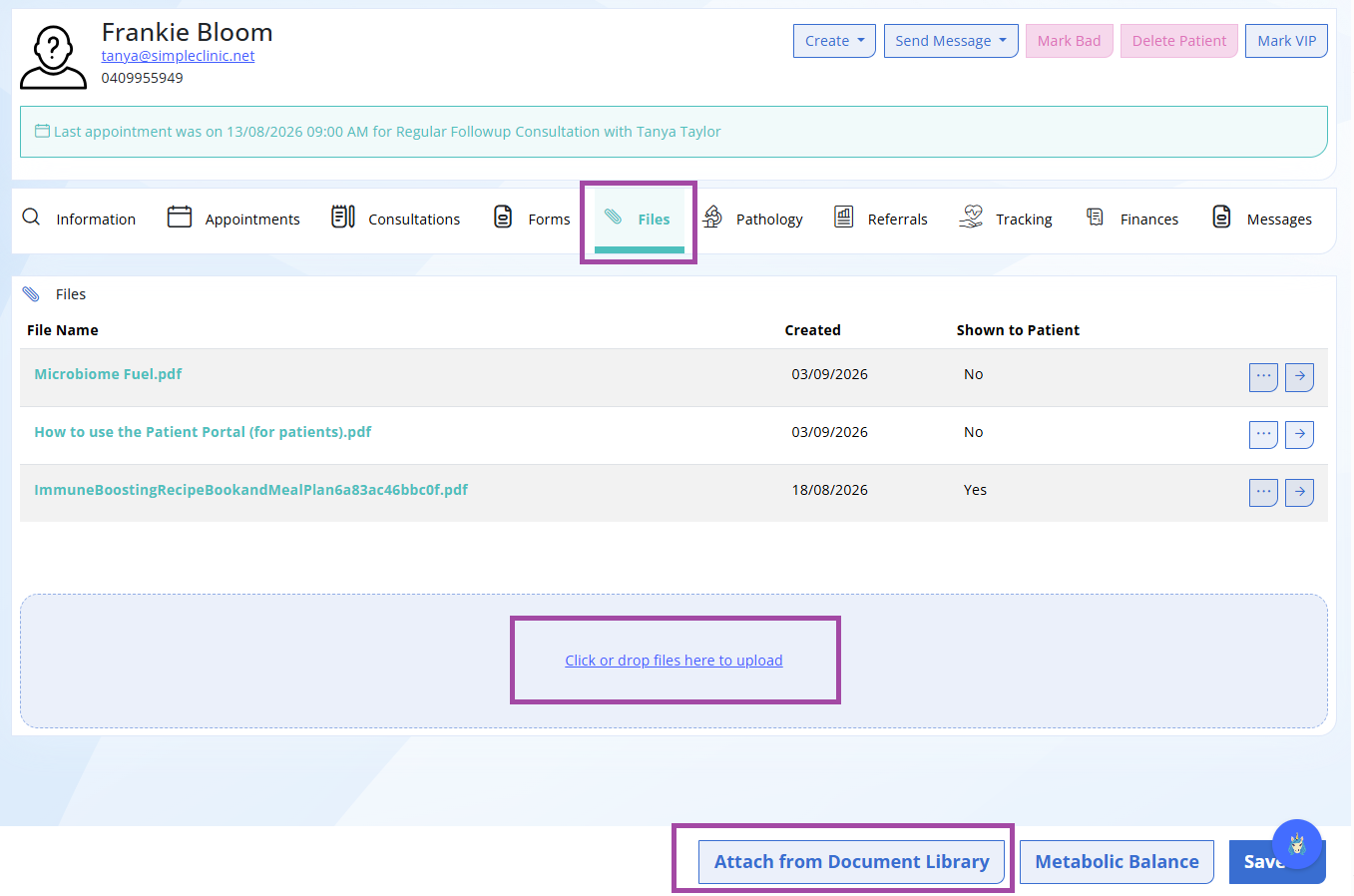
In the video and image below, we show you the Patient Files tab.
The Files tab is where you can upload and store files that relate to your patient.
The following file types are supported for upload:
- Microsoft Word - docx and doc file extensions (inline file preview not supported)
- Image file types - PNG, JPG (File preview available)
- Adobe Acrobat - PDF (File preview available)
- Other file types - RTF and plain text
Note: File names cannot contain spaces or special characters. They will be automatically removed upon uploading your file to ensure compatibility across all devices.
FILE LIMITS - There is a file size limit of 5Mb for a single file to be added to the Document Library.
Add files from your device
- Select the Files tab under the patient record.
- Click or Drop the files from your device to be uploaded
Add files from your Document Library
- Select the 'Attach from Document Library' button in the bottom action bar
- Select the document from the pop up box - drop down menu -> Okay.
You can also share these documents with your patients in the patient portal.
To find out more about the patient portal, please click this link. There is a specific one on Digital File Sharing that shows how this works.
Viewing the Documents
By clicking on each file, you can preview the file and select whether you want this file shown to the patient in the patient portal.
You can also delete the files from the sidebar as well.