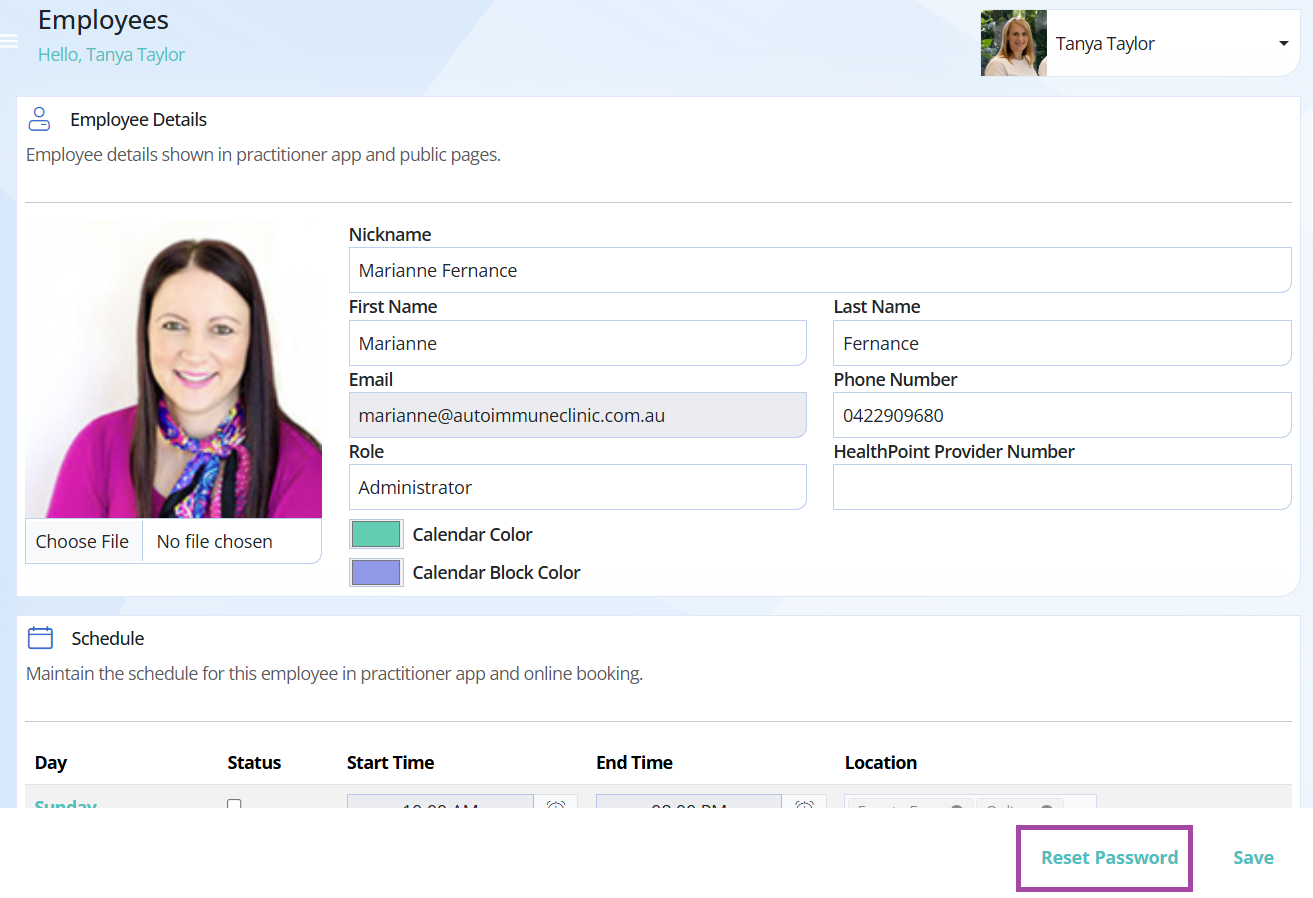
Whether you are a sole practitioner, a contractor or employee in a multi-practitioner clinic, you need to configure your user settings in the Employees section.
To add a new user, email support@simpleclinic.net with the below details.
- First Name
- Last Name
- Email to login to SimpleClinic (this email MUST be a unique email)
- Mobile number for password resets -> Profile picture.
On this page:
- Employee details
- Schedule
- Provider numbers
- Branding Override
- Reset Password
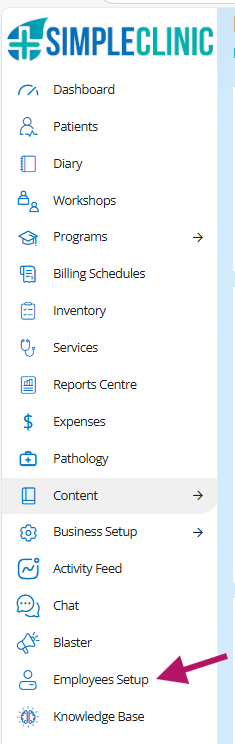
From the SimpleClinic left hand side main menu -> select the Employees option. The employees list will appear.
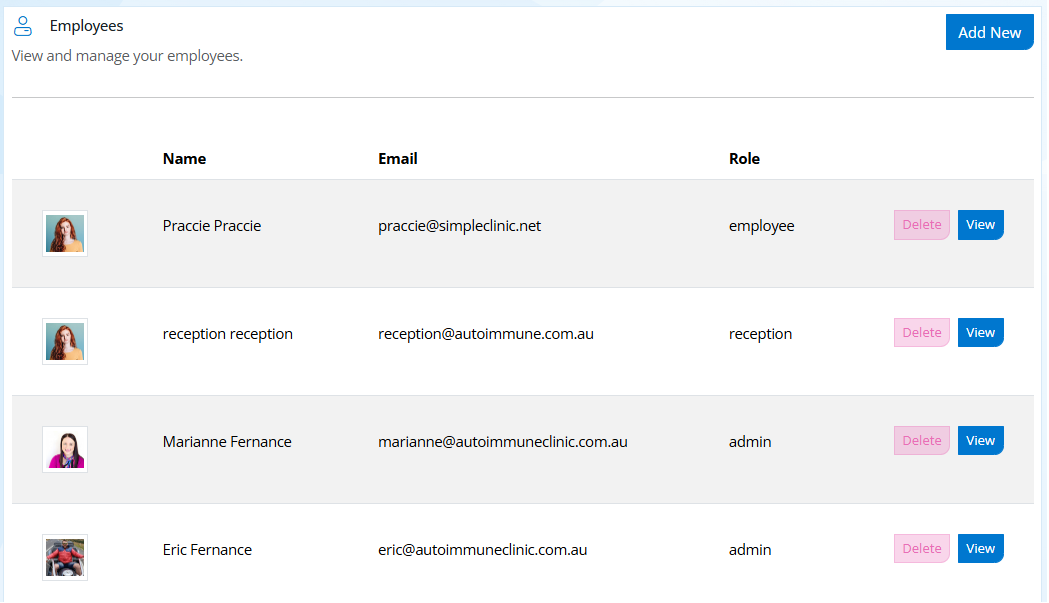
Click on the View button to view the employee.
Employee Details
Nickname: This will be the name displayed in your Online Booking URL
First Name and Last Name: Practitioner first and last name
Email: You user login email (email support@simpleclinic.net if you need this changed)
Phone Number: This number is used for password reset codes to be sent to. It is not visible to patients
Role: Refer to the User Role article for more information as to the roles and permissions each role has in SimpleClinic.
HealthPoint Provider Number: These can be added if using Tyro for health fund rebate claims.
Calendar and Block colour preferences: Edit your dairy appointment and block colours

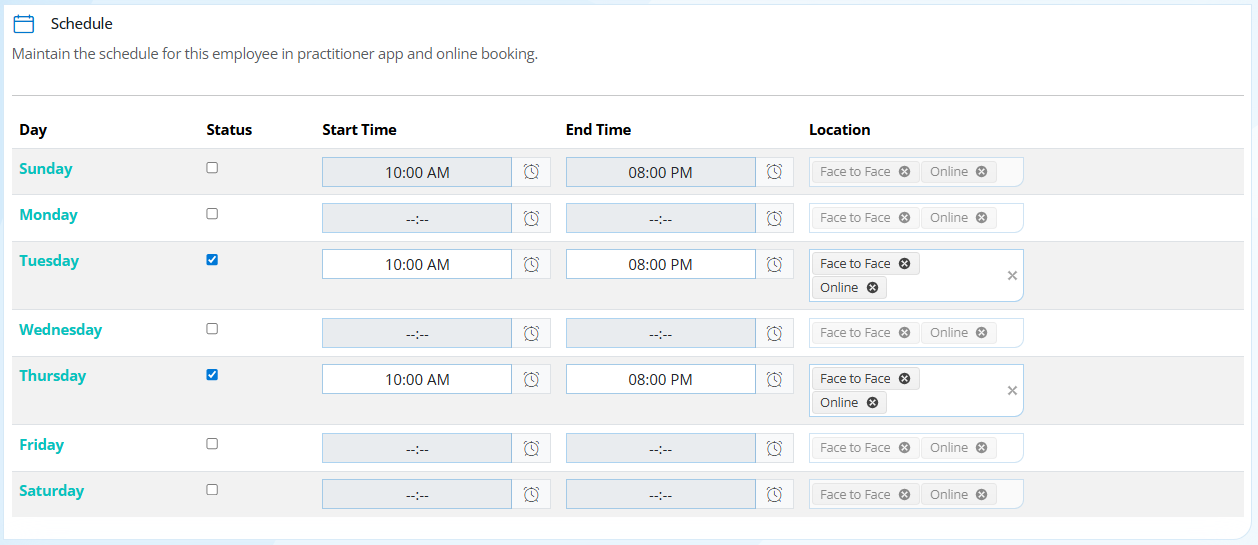
Schedule
Set your Weekly schedule of hours of availability, and locations on each day. Diary appointments can be booked outside of these operating hours manually in the Diary screen, but not via the online booking page.
Provider Numbers
Provider numbers – health insurance fund provider numbers can be added here, so that they are printed on invoices. Refer to this article to ensure your invoices are health fund rebate compliant.

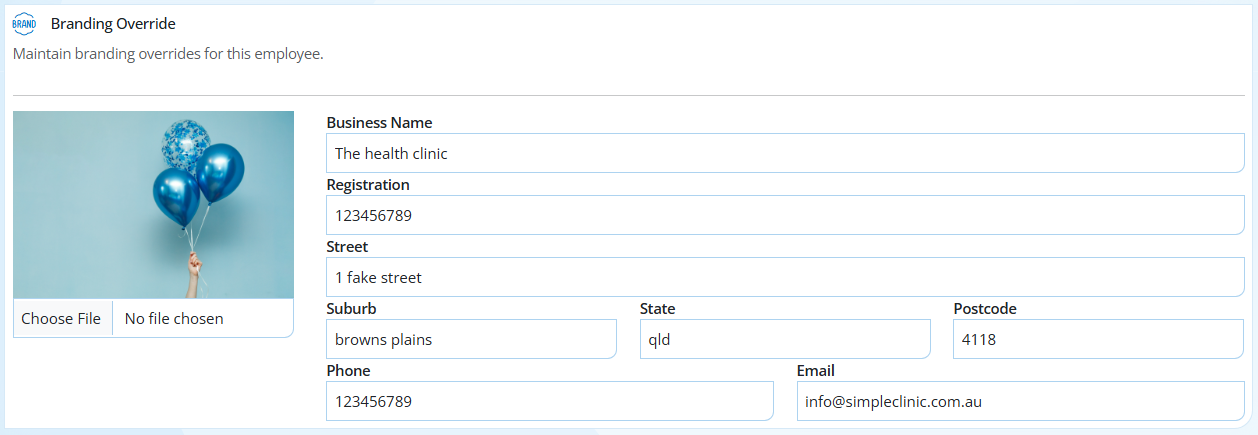
Branding Override
This is only to be used for practitioners who operate their own separate business within another clinic and have their own business name and logo branding. The practitioner can override the clinic's branding with their own, which will be displayed on invoices etc.
Refer to to this article for more about setting a Branding Override.

Reset Password
Select Reset Password to have a new password sent as an SMS to your mobile number.